
2. Setup
2.1 The letters
Let's start! The first thing to do is to add the letters in the component.
Navigate to "Components - Dictionary - Letters".
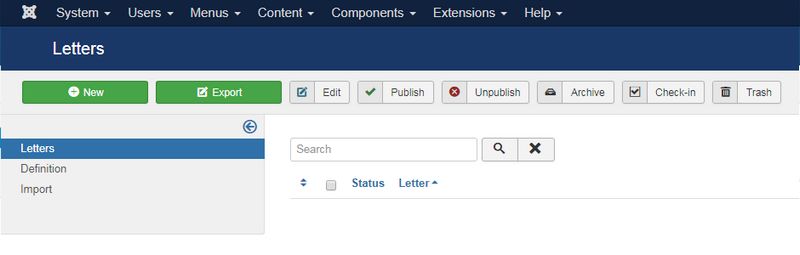
Click on "New" and add your first letter. Let's start with A.
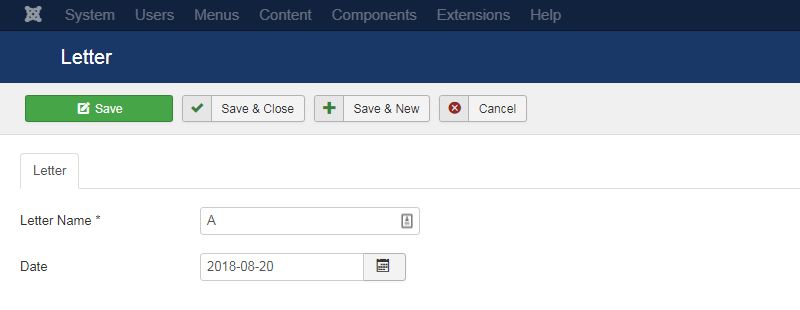
Click on Save and close".
You can add your others letters while clicking each time on "Save and new". Otherwise, click on "Save and close".
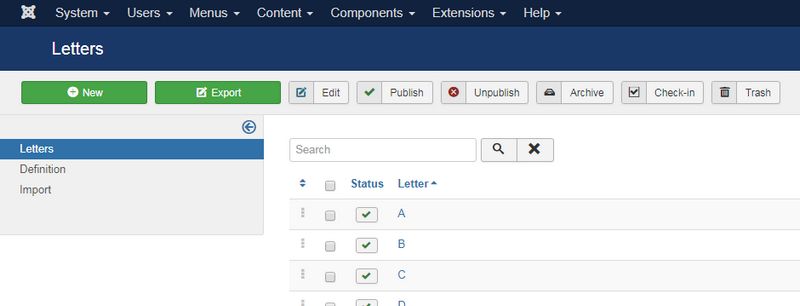
You don't need to add all the letters of your alphabet, just the ones you'll need.
2.2 The words and definitions
Navigate to "Components - Dictionary - Definition" or click on "Definition" in the left menu.
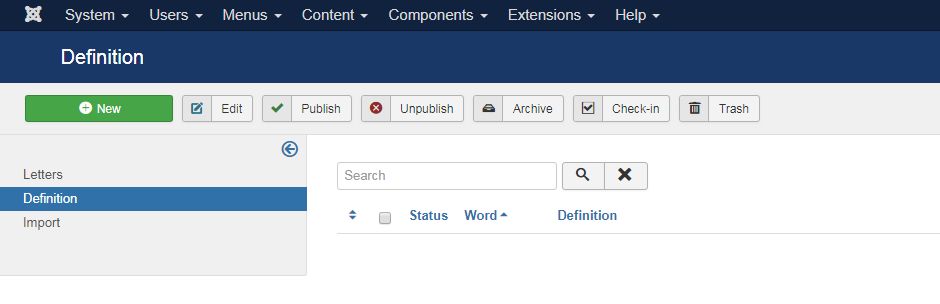
Click on "New".
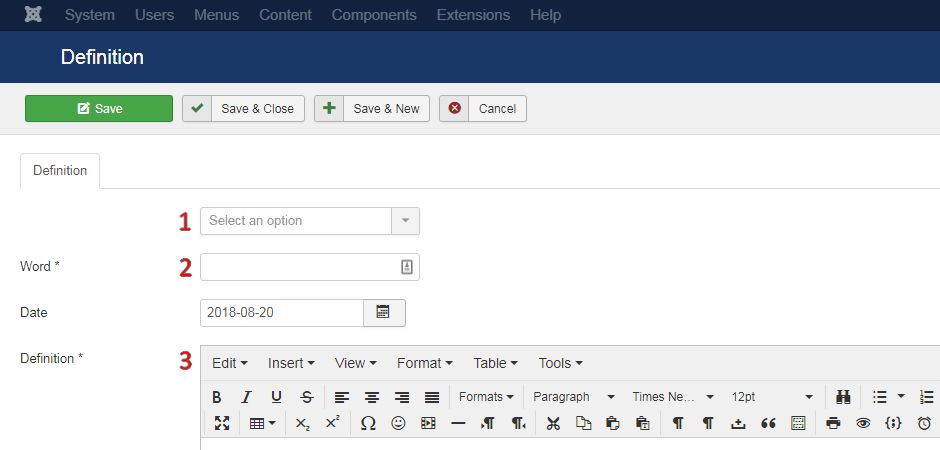
Select the initial of the word you want to add with the "option selector".
In the field "word", write your word.
In the Definition field, write the definition of your word.
Click on "Save" once it's done.
As you can see on this screen, your word and his definition are listed. You can control that your definition also contains your possible customisations.
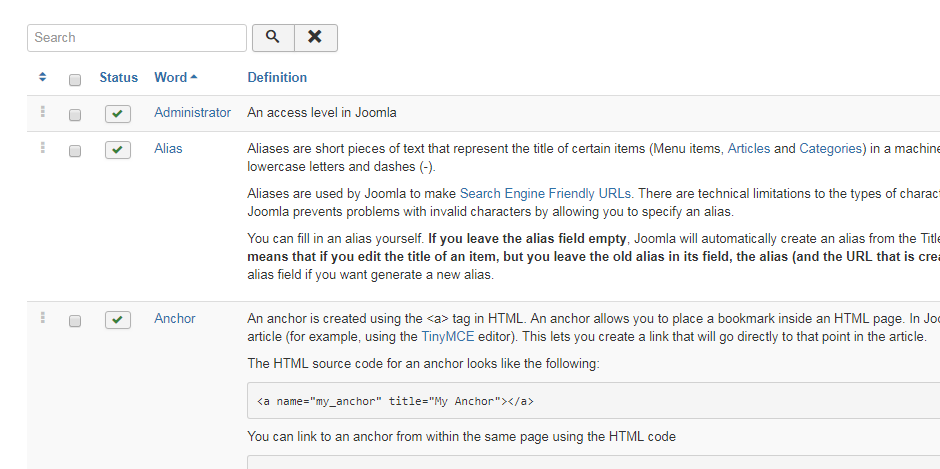
You don't have to worry about the alphabetical order of your words, Dictionary does the job for you since version 3.0 :)